Why You Don't Need Wi-Fi to Run a Digital Menu Board in Your Restaurant
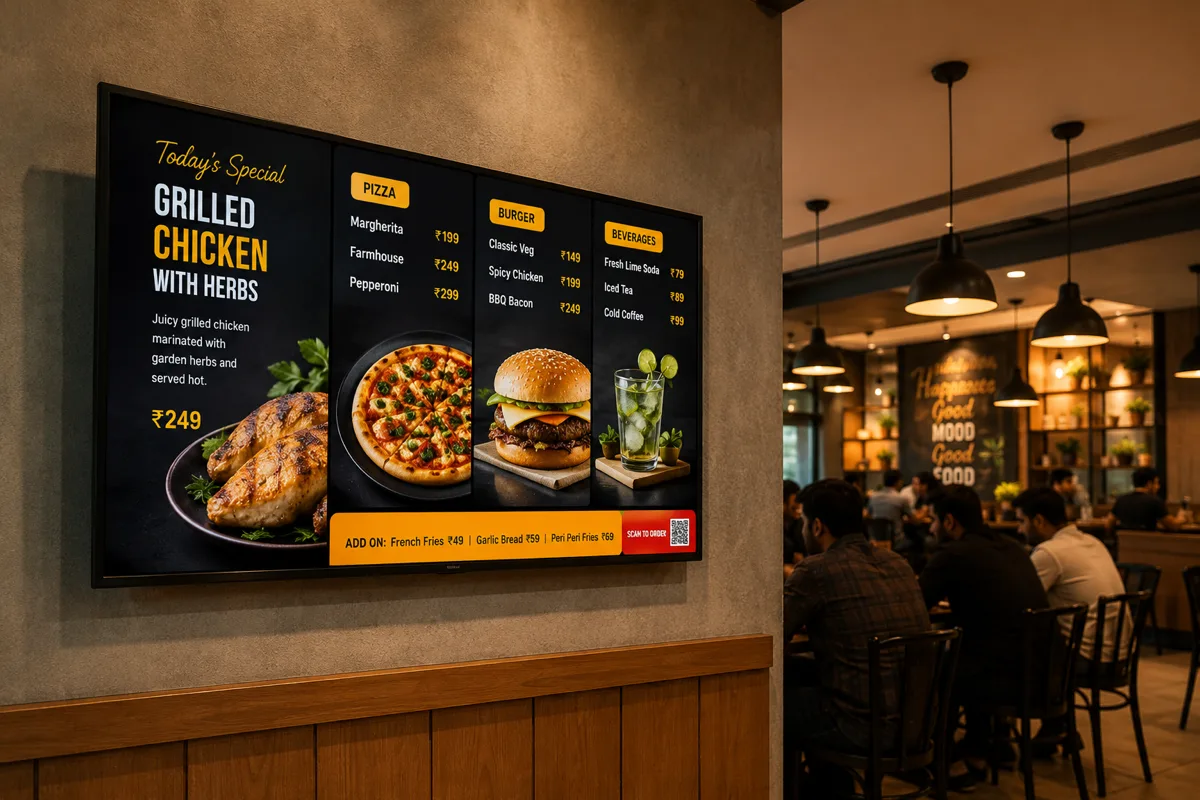
If you have looked into digital signage for your restaurant, you have probably run into the same catch every time: most platforms assume your TV has a solid, always-on internet connection. Which is a strange assumption, because if you have ever tried to load a food delivery app while sitting near the billing counter of your own restaurant, you already know how unreliable that Wi-Fi can be.
That is exactly the problem USB Mode in Swift Signage was built to remove. No Wi-Fi. No router. No monthly subscription. No account to sign into. Just a USB flash drive, your Android TV, and the free Swift Signage app from the Play Store.
What USB Mode Actually Is
Swift Signage normally works two ways. There is Cloud Mode, where you manage content remotely from a dashboard, and there is USB Mode — which is completely offline by design. You put your menu images, offer banners, and promotional videos into folders on a regular USB drive, plug that drive into your Android TV, open the app, and your content plays on a loop. Nothing touches the internet at any point.
For a huge number of restaurants — especially smaller ones, or ones tucked into a building where the router signal barely reaches the dining area — that offline-first design is the whole point. You are not fighting a buffering icon in the middle of dinner service.
Setting It Up Takes About Five Minutes
There is no login screen, no account creation, and nothing to configure on a computer first. You organize your menu photos and videos into a folder on the USB drive, plug it into the TV, and open Swift Signage. The app scans the drive, shows you exactly what it found, and lets you pick how you want the screen to look before you hit play.
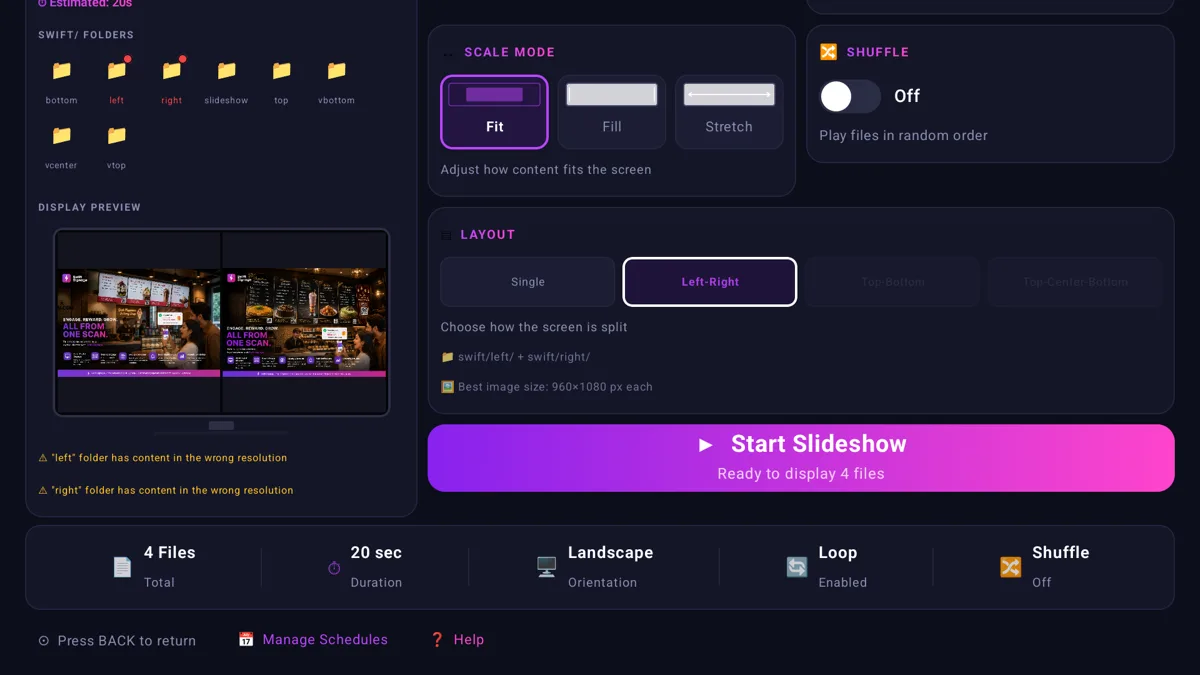
The Configure Slideshow screen — pick a layout, and a live preview shows exactly what will play on the TV.
The app even tells you if a folder is empty or if an image is the wrong shape for the layout you picked, right before you start the slideshow — so you are not finding out something is broken by walking past the TV later.
One Screen, More Than One Thing at Once
This is where USB Mode goes beyond "just a slideshow." Instead of one image filling the whole TV, you can split the screen into independent zones, each looping its own content.
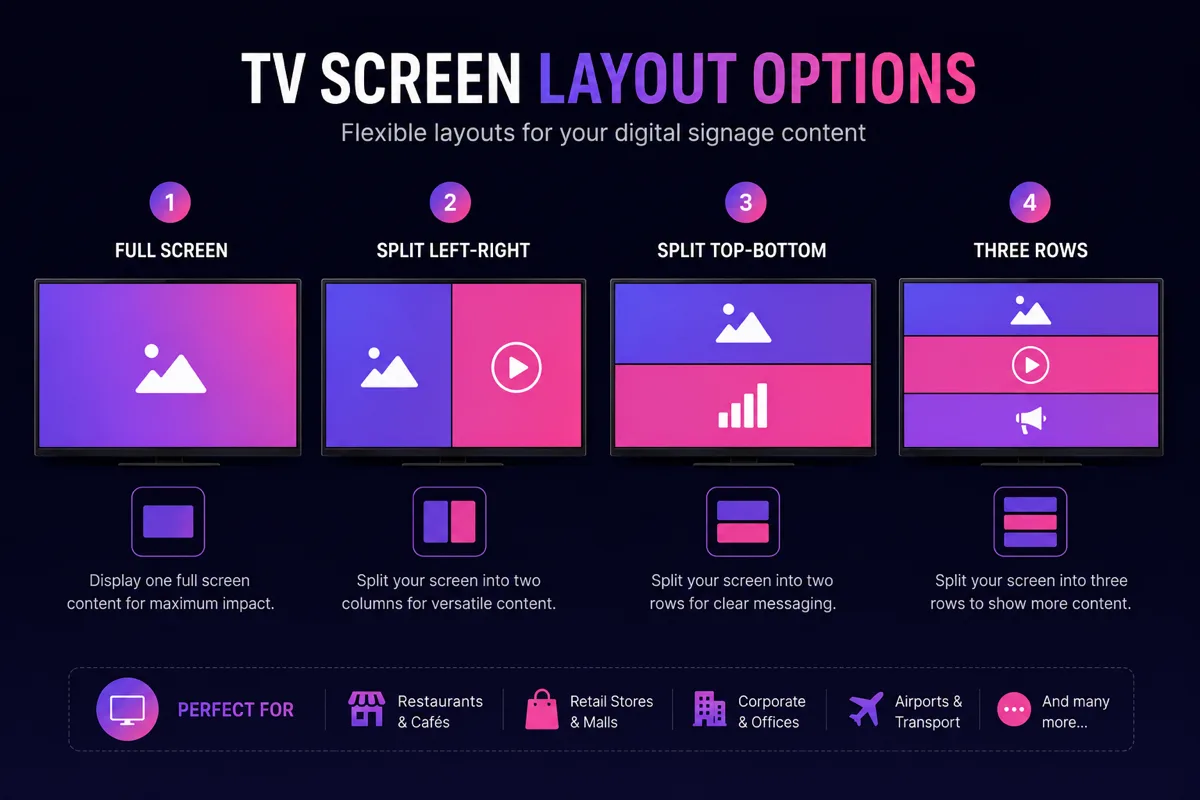
Four layout options — pick the one that fits how much you want to show at once.
A restaurant we would design this for might run today's specials on the left and a rotating photo gallery of best-selling dishes on the right. Or stack the menu on top, a promotional video in the middle, and a "scan to join our rewards program" QR code on the bottom — three things playing at once, from a single TV, with zero internet connection required.
Your Menu Can Change Itself, on a Schedule
Restaurants do not serve the same menu all day, so why should the screen show the same thing all day? USB Mode supports time-based scheduling — you set up a breakfast menu, a lunch menu, and a dinner menu once, and the app automatically switches between them at the times you set.
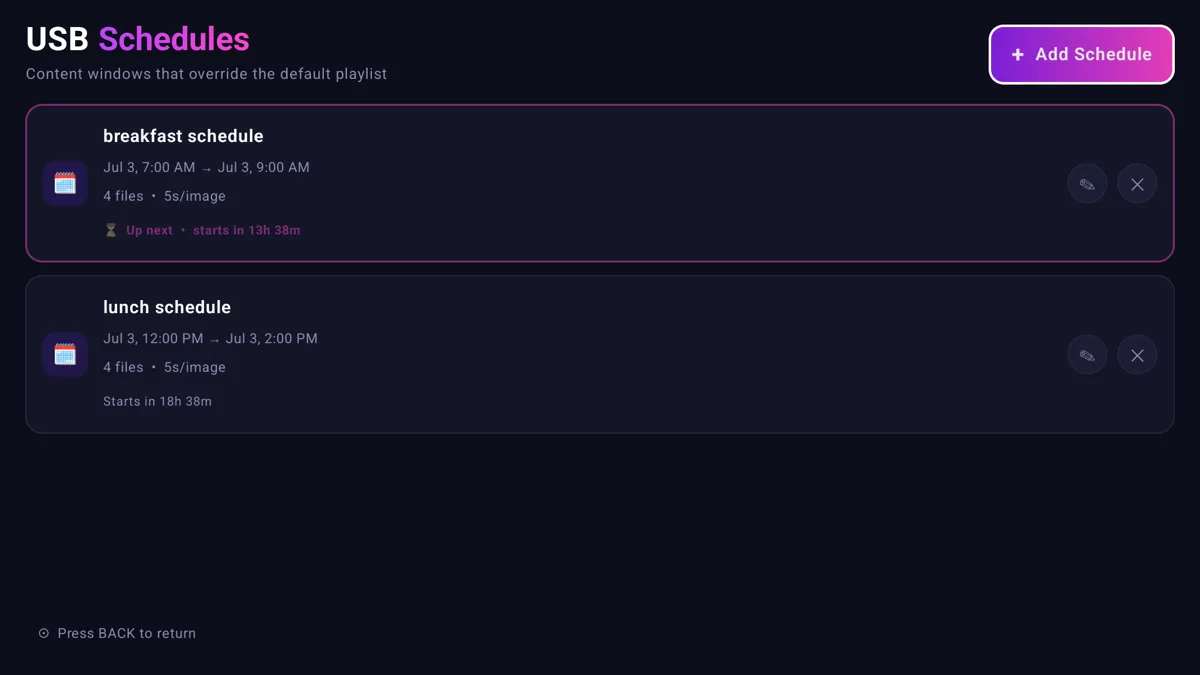
Set a breakfast, lunch, and dinner schedule once — the screen switches itself, no staff involvement needed.
No one on your team has to remember to walk over and change anything. The breakfast menu comes down and the lunch menu goes up exactly on time, every day, without a single tap.
Why This Actually Matters for a Restaurant
Every part of USB Mode was built around how a real restaurant actually operates, not how a software company imagines one does.
There is no recurring cost. USB Mode needs no subscription or account, so if all you want is a menu board that plays on a loop, it costs you nothing beyond the TV and a USB drive you probably already own.
It does not depend on your Wi-Fi being good. Kitchens, basements, and buildings with thick walls are notorious Wi-Fi dead zones. USB Mode does not care, because it is not using the network at all.
Updating content is genuinely simple. Swap the USB drive, or just plug it into any laptop and drag new files in. There is no upload progress bar, no waiting for a sync, no app to keep track of a login for.
There is nothing to secure. A device that never connects to the internet cannot be hacked over the internet. For a lot of small business owners, that peace of mind is worth as much as the convenience.
Frequently Asked Questions
Does a digital menu board need Wi-Fi or internet to work?
Not with Swift Signage's USB Mode. Every image and video plays directly off the USB drive — no internet connection is used or needed at any point.
What file types can I use for my restaurant's menu content?
Both images (JPG, PNG, WEBP, BMP) and videos (MP4, MKV, MOV, AVI, M4V, 3GP) are supported, so you can mix photos of dishes with short promotional clips.
Can I show more than one thing on the screen at the same time?
Yes. USB Mode supports split-screen layouts — two-way splits and a three-way split — so you can show your menu, a promotion, and a QR code at once.
Is there a monthly fee for USB Mode?
No. USB Mode requires no account and no subscription. It is part of the free Swift Signage app.
What TV do I need?
Any Android TV works, or a regular TV with an Android TV box or stick connected to it.
If you want to see how a digital screen fits into the rest of your restaurant's day-to-day beyond just the menu, this post walks through that. And if you are curious how small, independent restaurants are using screens like this to compete with big chains, read this one next.
No sign-up. No Wi-Fi. Just plug in and play.
Download Swift Signage for free and try USB Mode on your restaurant's TV today.
Get Swift Signage on Google Play